 Cloud BOT Docs
Request to AI (Cloud BOT Operator)

Home > User guide > BOT > How to use the BOT editor > Request to AI (Cloud BOT Operator)
About Cloud BOT Operator
Cloud BOT Operator is a feature that allows an AI agent to automatically perform browser operations based on instructions (prompts) entered by the user.
Cloud BOT Operator uses transactions during execution.
*Learn more about transactions here.
*Learn more about transaction usage guidelines here.
Execute Cloud BOT Operator
Cloud BOT can execute Cloud BOT Operator as part of an automated operation flow.
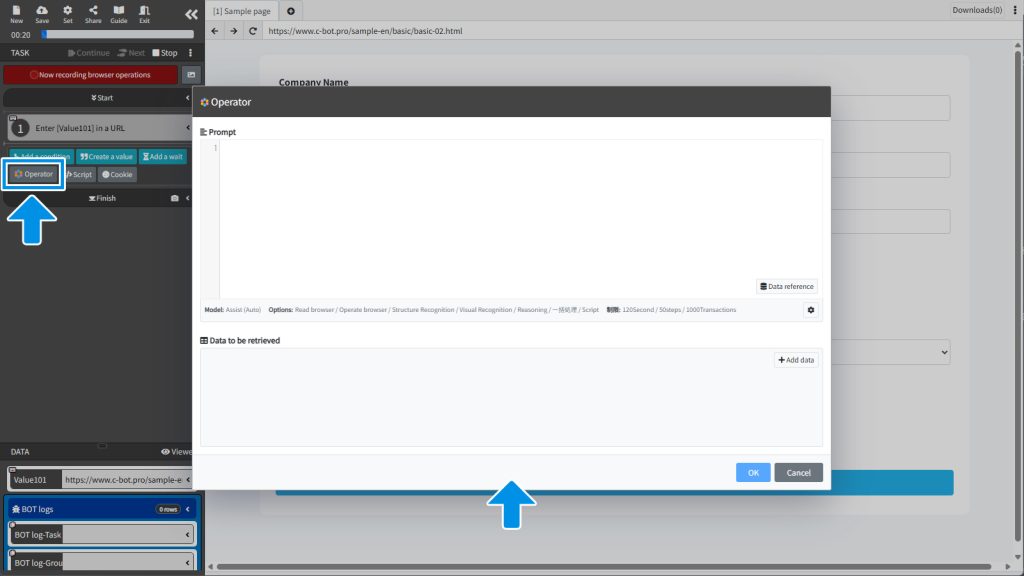
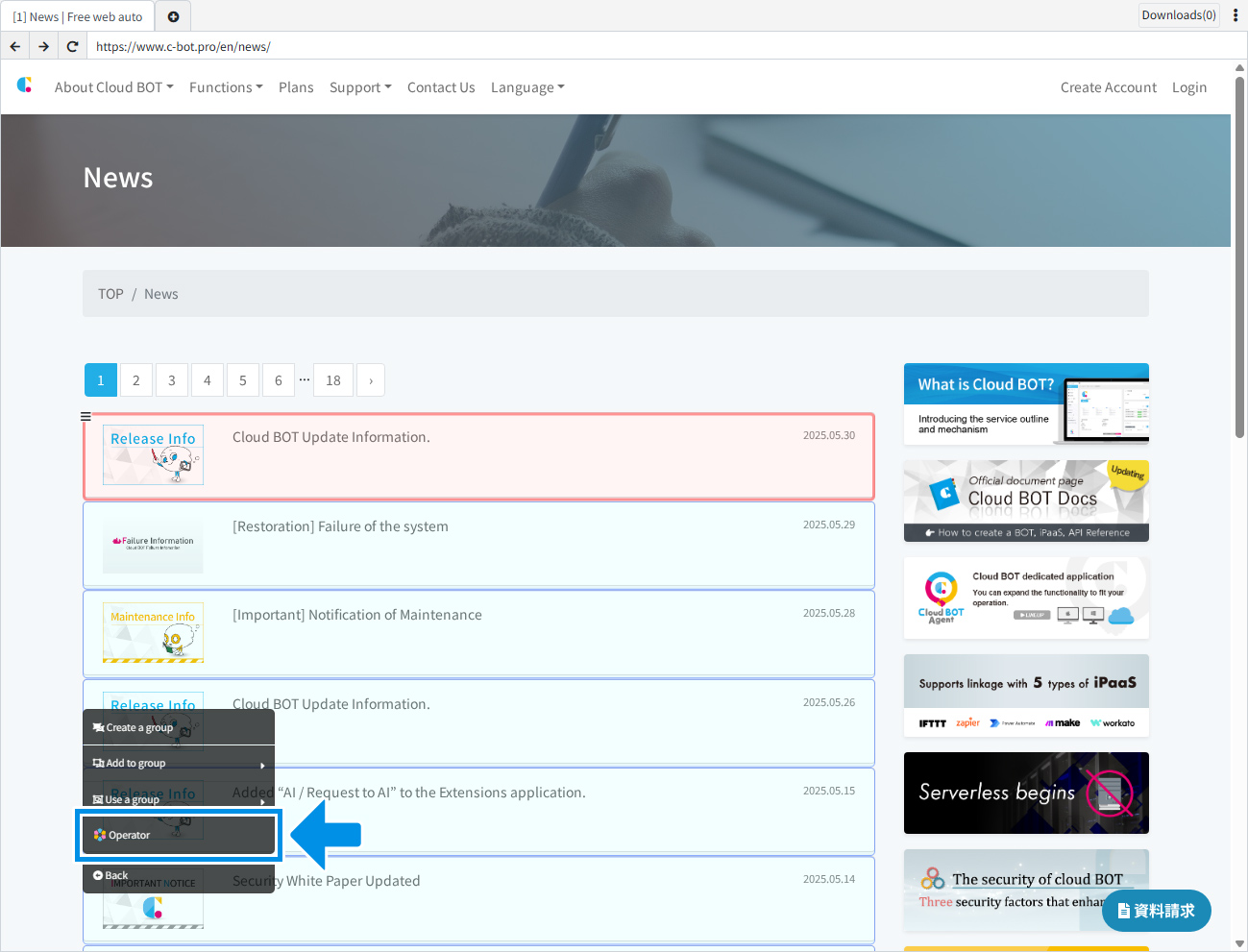
Click the “Operator” button within a task to open the prompt input window.
Enter any prompt and click the OK button to add a task that executes Operator according to the entered prompt.
Prompt: Describe the instructions in natural language.
Data to be retrieved: When retrieving data, specify the data name and description.
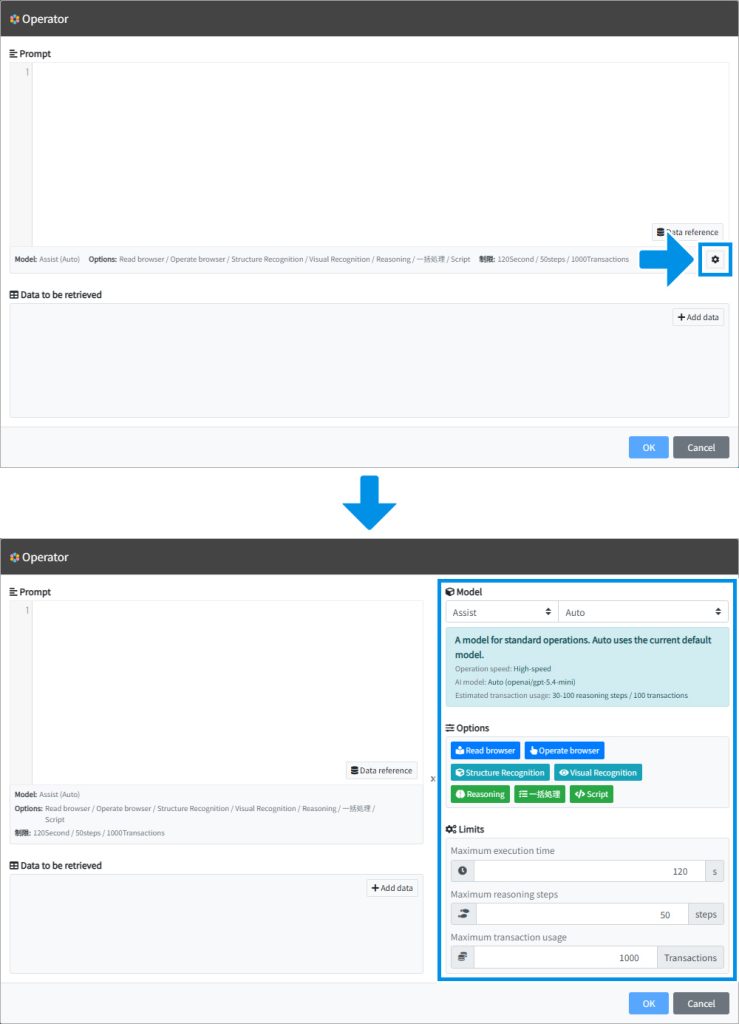
Click the settings button located at the bottom-right of the prompt input screen to open the settings window.
Model: Select the model to use.
Options: Specify the features that Cloud BOT Operator can use.
Limits: Configure execution limits for Cloud BOT Operator.
Prompt
In the prompt field, describe in natural language what you want Cloud BOT Operator to do.
Cloud BOT Operator is not conversational, so all instructions should be entered together in a single prompt.
Referencing BOT Data
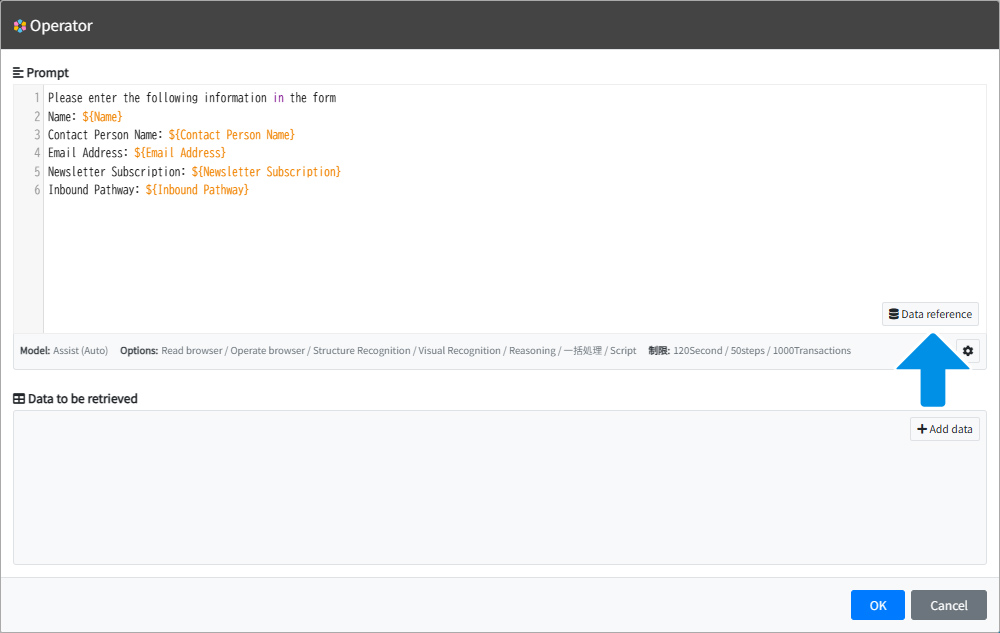
Values stored as BOT data can be referenced using the format ${DataName}.
You can also reference data and insert it into the prompt using the “Reference Data” button.
Data to be retrieved
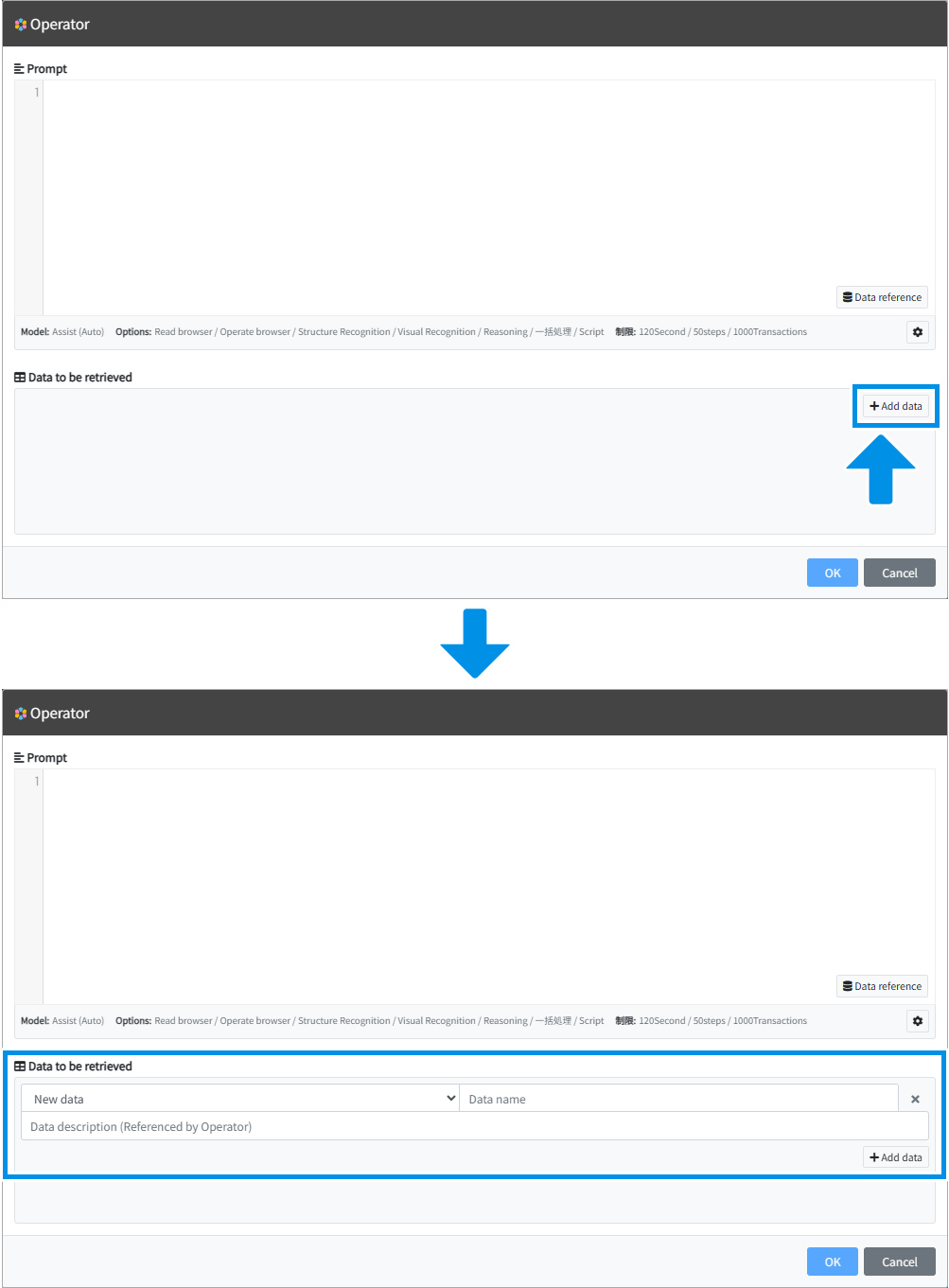
Specify the data name and data description of the data you want Cloud BOT Operator to retrieve.
About “Data description (Referenced by Operator)”
By entering a description of the target data, the Cloud BOT Operator is better able to retrieve it accurately.
Example : If the data name is set to "ID" but the label shown on the screen is “Username,” the AI may fail to identify the correct value.In this case, entering a clear positional or contextual description in “Data description”—such as“The number shown to the right of the username” can improve accuracy.
Example : “Data Description” can also be used to store the result of AI-based analysis or summarization, such as “Summarize what this page is trying to communicate”.
Model
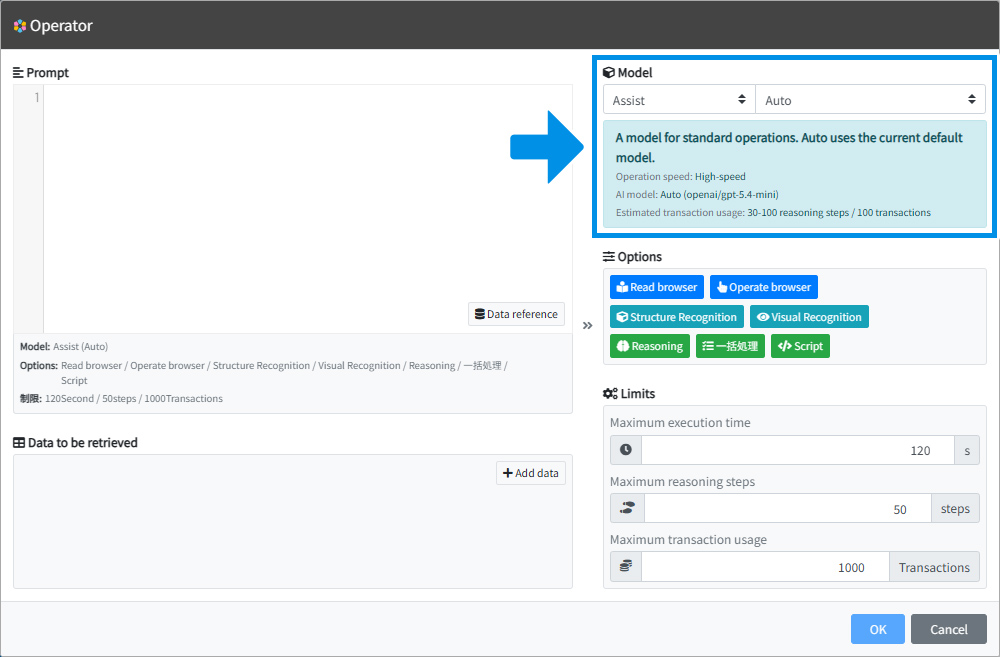
Select the model to use.
Simple: The lightest model for simple operations.
Assist: A model for standard operations.
Control: A high-performance model for complex operations.
Expert: A model for the most advanced and difficult operations.
Legacy (Deprecated): Select this only when it is necessary to use older models.
When Auto is selected for a model, the corresponding AI model will automatically be updated whenever newer versions become available.
Options
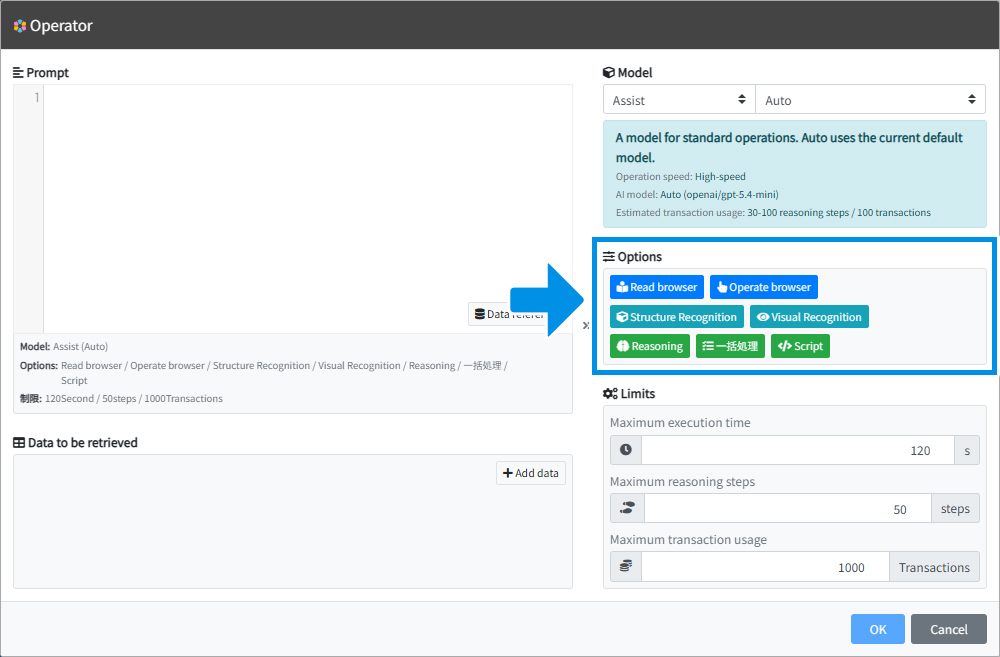
You can select the features available to Operator.
Read browser
Allows Operator to reference information from the virtual browser.
Use this when reading on-screen information, verifying content, or extracting data.
Operate browser
Allows Operator to perform operations in the virtual browser.
Use this for browser interactions such as clicking, typing, copying, and pasting.
Structure Recognition
Operator recognizes the page structure as text-based information.
This enables fast processing and is suitable for cost-efficient operation.
Visual Recognition
Operator visually recognizes the page using image-based information.
Because it can interpret colors, shapes, and other visual elements on the screen, it is effective for pages that are difficult to handle using structural recognition alone.
Enabling this option slightly increases processing time and cost.
*If both “Structural Recognition” and “Visual Recognition” are enabled, Operator will normally process tasks efficiently using structural recognition and switch to visual recognition only when necessary.
Reasoning
Improves Operator’s decision-making accuracy.
This is effective for screens with complex layouts or operations involving multiple conditions.
Enabling this option slightly increases processing time and cost.
Batch Processing
Operator automatically identifies operations that can be processed together and executes them in a single step.
Enabling this option for repetitive tasks such as form entry or data copying can reduce the number of processing steps and help lower costs.
Script
Allows Operator to generate and execute JavaScript.
This enables advanced processing such as batch operations, DOM manipulation, and data transformation that are difficult to achieve through standard browser operations alone.
Permission Control
You can configure the range of operations permitted for Cloud BOT Operator using three permission levels.
| Options Settings | Permission Scope | Description | |
| Read browser | Operate browser | ||
| 〇 | 〇 | Full Access | Freely operates the browser according to the prompt. |
| 〇 | × | Read-Only Access | Browser operations are prohibited. Screen reading only is allowed. |
| × | × | No Access | Browser operations are prohibited. Data processing only is allowed. |
Limits
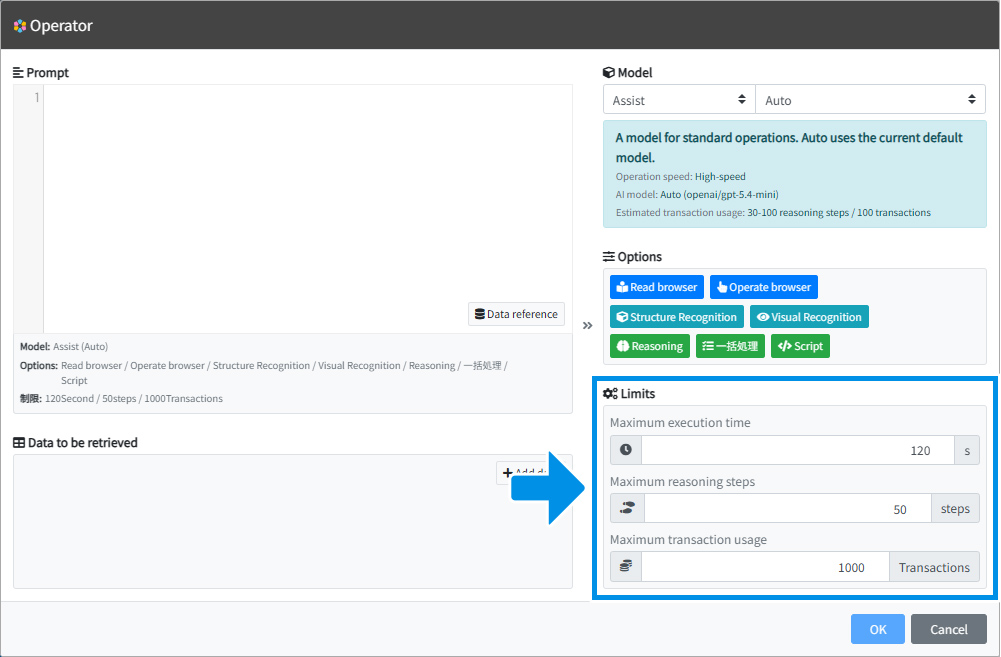
You can configure execution limits for Cloud BOT Operator. If any limit is exceeded, the task will end with an error.
Maximum execution time : Set the upper limit of execution time in “seconds”.
Maximum reasoning steps : One step consists of a thought and an action. The upper limit for the number of steps can be configured.
Maximum transaction usage : The upper limit for transaction usage can be configured.
The upper limit for transaction usage can be configured.
Transactions are counted per thought step. When the cumulative usage exceeds the limit, the task results in an error.
However, the step in progress is still executed to completion, and its transaction usage is also counted—even if the limit is exceeded.
Approximate Transaction Usage
The amount of transactions used is only a guide and will vary depending on the page being operated on.
Please be sure to check how many transactions are used per step.
| Model | Approximate Transaction Usage |
|---|---|
| Simple | 100-300 reasoning steps / 100 transactions |
| Assist | 30-100 reasoning steps / 100 transactions |
| Control | 10-30 reasoning steps / 100 transactions |
| Expert | 5-15 reasoning steps / 100 transactions |
Execute Cloud BOT Operator by specifying a selection
Specifying a Selection Range
When a selection range is defined, the Cloud BOT Operator processes only the content within that range.
Information outside of the selection range is not recognized by the Operator.
*More on adjusting the selection range here.
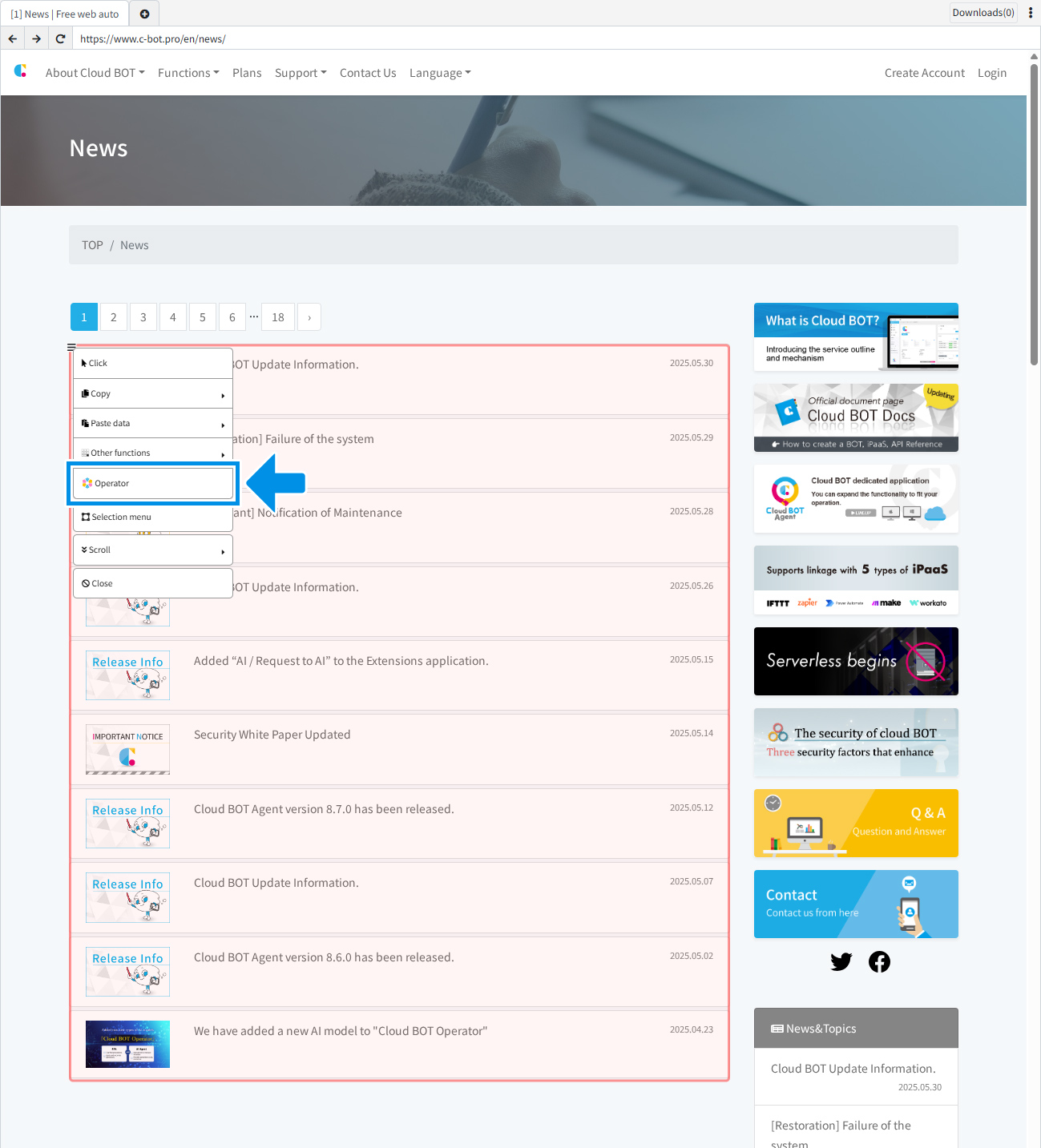
Specifying Multiple Selection Ranges
When elements with the same structure are repeated, multiple selection ranges can be specified.
Information outside of the selection range is not recognized by the Operator.
*More on adjusting the selection range here.
*This function is only available with structural recognition models.
Prompt Examples
In order to correctly convey your intentions to the Cloud BOT Operator, it is important to describe “what you want us to do” in a clear, straightforward, and specific manner.
Enter a concise summary of the necessary information, such as what you want them to do and how you want them to acquire it.
| Operation | Example Prompt |
|---|---|
| Enter the necessary information in the input form. *It is assumed that the information required for input is data reference from the input value. | Please enter the following information in the form Name: ${Name} Contact Person Name: ${Contact Person Name} Email Address: ${Email Address} Newsletter Subscription: ${Newsletter Subscription} Inbound Pathway: ${Inbound Pathway} |
| Clicking a button | Click on the blue button that says “Submit. |
| Retrieving data | Obtain a member ID. Data to be retrieved Data name: Member ID Data description: The number to the right of the user name. |